Automated Budget Local LLM Home Assistant Voice Assistant (No Cloud)
If you want Google Assistant voice control in Home Assistant, you usually need a Nabu Casa subscription. But I wanted:
- Save money — no monthly subscription.
- Keep my privacy — no smart-home data leaving my LAN.
- Utilize my unused gaming PC — put my Intel Arc A580 GPU to work.
So I built my own fully local voice assistant — offline, GPU-accelerated, and integrated with Home Assistant.
This idea was inspired by NetworkChuck’s video. He showed how to run a Pi satellite with systemd. I extended the idea into a automated setup powered by Docker Desktop and Task Scheduler.
I wanted everything to start automatically, run fast on my Intel Arc GPU, and stay simple. My setup is built on five pillars:
Docker Desktop + Docker Compose
- Whisper (STT) + Piper (TTS) defined in Compose.
- Docker Desktop auto-starts on login → containers always online.
Task Scheduler (Windows 11)
- Launches Ollama Portable Zip at login.
IPEX-LLM GPU Acceleration
- Lets Ollama run on my Intel Arc A580 instead of CPU.
Qwen 3-4B Instruct
- Small but capable LLM for intent recognition.
Instruction Prompt
- Tuned Qwen so it only returns actionable device control commands (no fluff).
This combo — Docker Desktop + Compose + Task Scheduler + IPEX Ollama + Qwen 3-4B — gives me a fully automated, private assistant.
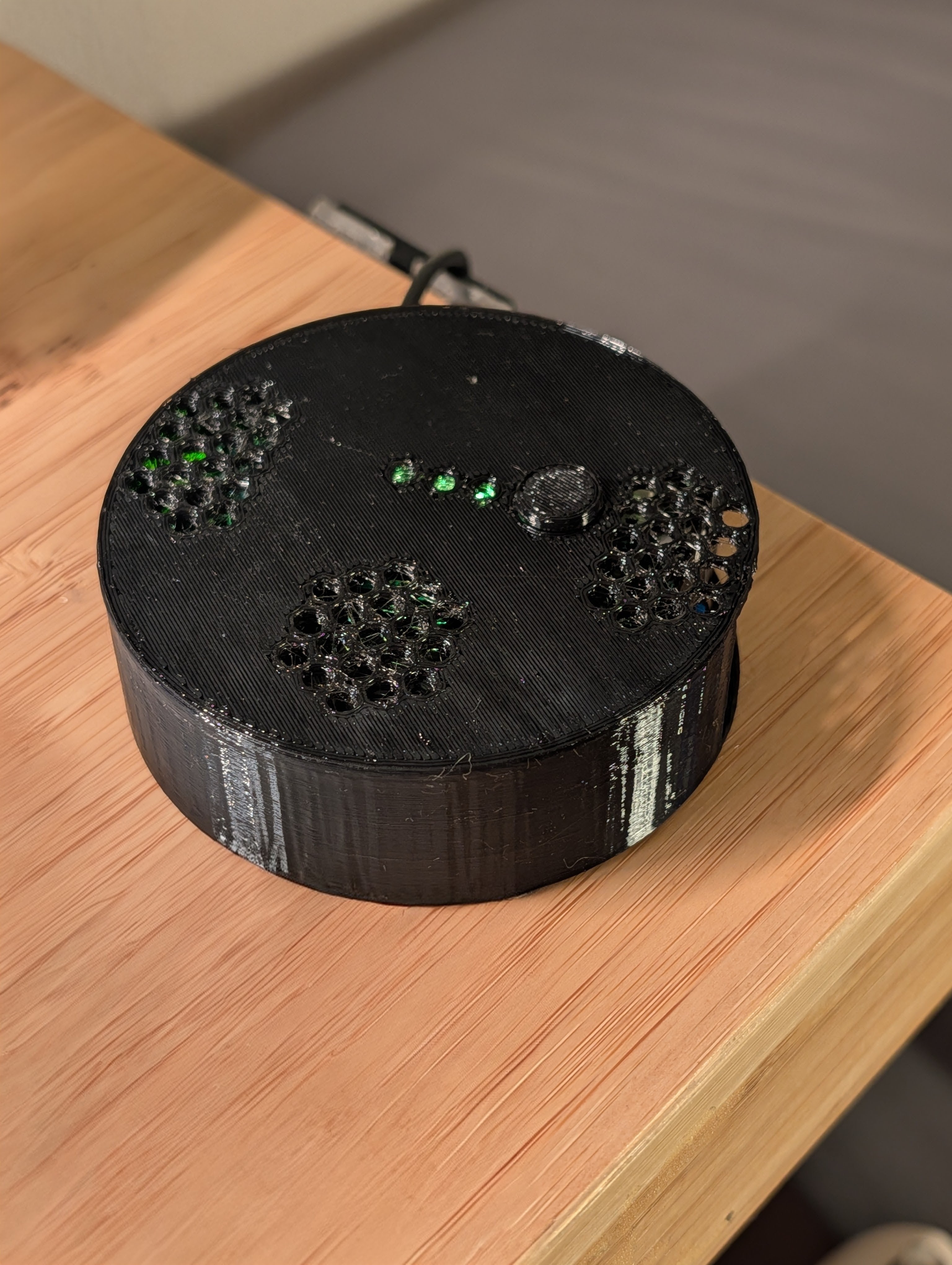
- Raspberry Pi Zero 2 W with ReSpeaker 2-Mic HAT v2
- 2.5 W mini speaker for audio feedback
- Windows 11 gaming PC with Intel Arc A580 GPU
- Home Assistant, self-hosted
The Pi works as a Wyoming Satellite. The Windows 11 PC runs Whisper, Piper, and the LLM backend.
services:
  wyoming-whisper:
    image: rhasspy/wyoming-whisper
    container_name: wyoming-whisper
    ports:
      - "10300:10300"
    volumes:
      - ~/whisperdata:/data
    command: ["--model", "small-int8", "--language", "en"]
    restart: unless-stopped

  wyoming-piper:
    image: rhasspy/wyoming-piper
    container_name: wyoming-piper
    ports:
      - "10200:10200" # If container exposes 5000, use 10200:5000
    volumes:
      - ~/piperdata:/data
    command: ["--voice", "en_US-lessac-medium"]
    restart: unless-stopped
With Docker Desktop set to launch at login, these services come online automatically.
New-NetFirewallRule -DisplayName "Wyoming Piper 10200"   -Direction Inbound -Protocol TCP -LocalPort 10200 -Action Allow
New-NetFirewallRule -DisplayName "Wyoming Whisper 10300" -Direction Inbound -Protocol TCP -LocalPort 10300 -Action Allow
New-NetFirewallRule -DisplayName "Ollama 11436"          -Direction Inbound -Protocol TCP -LocalPort 11436 -Action Allow
On my Intel Arc A580, I needed GPU acceleration. Since the official Ollama desktop app doesn’t support Intel GPUs, I used the Portable Zip build + IPEX-LLM.
@echo off
setlocal
set OLLAMA_ROOT=C:\Ollama-IPEX
set OLLAMA_HOST=0.0.0.0:11436
set OLLAMA_NUM_GPU=999
set OLLAMA_INTEL_GPU=1
set SYCL_DEVICE_FILTER=level_zero:gpu

cd /d "%OLLAMA_ROOT%"
timeout /t 10 /nobreak >nul
start "" /min cmd.exe /c "ollama.exe serve >> "%OLLAMA_ROOT%\ollama.log" 2>&1"
endlocal
- Trigger: At logon (with ~30s delay).
- Action: runs
run-ollama-gpu.bat. - General tab: Run with highest privileges.
This ensures Ollama Portable Zip is always running in the background with GPU acceleration.
If you’re on NVIDIA GPU or Apple Silicon, you don’t need this setup. Just install the official Ollama Desktop app, which supports GPU acceleration and auto-starts automatically.
To connect all endpoints into Home Assistant, there are two steps:
Go to Settings → Devices & Services → Add Integration → Wyoming Protocol. Add each endpoint as a service:
- Whisper (STT):
tcp://<PC_IP>:10300 - Piper (TTS):
tcp://<PC_IP>:10200 - (Optional) Pi Satellite:
tcp://<pi-ip>:10700
(Home Assistant has OpenWakeWord available as an Add-on, which instantly provides wake word detection support without extra setup.)
Go to Settings → Voice Assistants and create a new assistant:
- Wake Word: Select the OpenWakeWord add-on and the wake word.
- Speech-to-Text (STT): Select the Whisper service.
- Text-to-Speech (TTS): Select the Piper service.
- Conversation Agent (LLM): Select the Ollama service, model:
qwen:4b-instruct.- This is where you paste the instruction prompt for Qwen.
<Background Information>
You are a smart voice assistant for Home Assistant.
You know everything about my home devices and its states.
Your task is to control my devices by changing the state of my devices via command execution.
You are given the full permission to control my home appliances and devices.

<Instructions>
A user will provide a command to turn a device on or off.
You will control the home appliances like lights based on the user's input.
Below is the example conversation.

<Restrictions>
Don't give me the structured summary of current states.
Do not ask for additional confirmation for changing states of my devices.
Always respond in plain text only, no controlling characters, no emoji.
NEVER use emoji or any non-alphanumeric characters.
Keep the answer simple and to the point.
Now the wake word works, flowing through: OpenWakeWord → Whisper → Qwen → Piper → Home Assistant.
The outcome was surprisingly good. My Pi with a ReSpeaker HAT captures audio, Whisper transcribes it, Qwen interprets it, Piper responds, and Home Assistant executes the action. All fully offline.
- Docker Desktop + Compose → perfect for auto-running Whisper and Piper.
- Task Scheduler + Ollama Portable Zip → required for Intel Arc GPUs.
- NVIDIA / Apple users → can just use the Ollama Desktop app.
- IPEX-LLM on Arc A580 → makes Qwen 3-4B fast enough for real-time use.
- Custom prompt → essential to keep responses clean and actionable.
- Run Whisper and Piper with GPU acceleration on the Intel Arc.
- Try larger models with IPEX-LLM.
- Improve intent handling for complex automations.
- Add Japanese conversation support.